 Open Smylte in the Chrome Web Store ↗
Before you start
Install Smylte from the Store link above and open Smylte. In the same Chrome browser, sign in to the account that can view the Threads post. Copy the full link to the individual post, rather than a profile or search-results page. Save or download only content you have the right to keep and use.
Smylte uses your current browser session when needed. It does not bypass private-account access, login requirements, security checks or site limits.
Download a photo or video from one post
- Choose “Add posts” in the sidebar, then expand “Save posts or download media”. This panel handles individual links and supported batches.
- Paste the full Threads post link. Check that the detected source is Threads and that the link points to the post you intended.
- Choose “Download photos only” or “Download videos only”. Allow the requested site access if Chrome asks. A download-only action does not create a Library record.
- Follow the visible activity. Keep the task open while it reads the post and downloads supported files. Use its stop control if you need to cancel; files already confirmed complete are kept.
- Check the result, then choose “Open folder”. The folder action is available for a confirmed download. Only a completed file counts as downloaded: failed, cancelled and unconfirmed results are reported separately.
For several posts, paste supported exact links on separate lines and review the batch before starting. A batch can contain up to 100 supported posts. Patreon and Pinterest use single-link actions instead.
Want the post as well as its media?
Choose “Save this post” to add a supported post to the local Library. You can search its saved text, recognized picture text and available saved comments. For Threads, choose not to save comments, save the top 5 by likes (the default), or save all comments loaded during that run, up to 5,000 per post. Comments the site has not loaded cannot be saved.
Successfully saved text, previews and downloaded media remain viewable after the original post is deleted, provided you retain your local data. This does not recover posts that were already inaccessible before saving. Use Full Backup & Restore to protect your Library and available media; JSON export includes records without downloaded media.
Why might a video show only a thumbnail?
A thumbnail is an image, not a playable video. The site may expose a preview without a supported video file, the format may be unsupported, or the download may fail or remain unconfirmed. A poster-only or incomplete save is reported as “Partial”, rather than a successfully saved video. Smylte does not promise every Threads video can be downloaded.
- Open the original post in the same browser and check that your account can view it.
- Check the task’s activity and Chrome Downloads for the actual result. An accepted download request alone is not proof that a file finished.
- If “Pictures only (skip videos)” is enabled for a Library import, turn it off when you want videos included.
- If the site asks you to sign in, switch account or complete a security check, resolve it on the site first. If it limits requests, stop and wait before trying again.
- Check the installed version in Chrome’s extension details. This guide covers the published v0.55.15 release; update the existing installation through Chrome if you have an older version.
What can I save or download from each source?
The extension supports six sources with different Library and download options. Only supported content loaded during your run can be processed.
- Threads: import your Saved list, publicly loadable original posts from a specified profile, or supported exact post or reply links. Download supported photos or videos from an exact link.
- Instagram: import your Saved list, a specified public profile, or supported exact post or Reel links. Download supported photos or videos from an exact link.
- Facebook: import supported items loaded from your Saved list, or supported exact text/photo posts, photo carousels, direct photos and Reels. Download supported photos or videos from exact links. A signed-in live Saved-list import has not been verified here.
- X: import Bookmarks, Likes History or a supported exact post link. History skips existing entries by default; updating existing posts is optional. Download supported media from exact links. Quoted-post media and reply bodies are not copied.
- Patreon (beta): import accessible exact posts, creator home or posts pages, and supported creator collections according to your access. Download-only actions use one exact post link; creator pages and collections are Library imports.
- Pinterest: download supported photos or videos from one full Pin link at a time. Pins are not added to the Library; batch processing is not supported.
For supported links, use the same photo or video download actions described above. See the full source-by-source support table for the Library and download differences. Site access, formats and account restrictions still apply.
Find your saved material again
Search locally by words in the post, recognized image text or available saved replies. Optional “Search by meaning” also runs on your device; it prepares an index with visible progress and stop/resume controls. Its built-in model takes extra storage even while the feature is off. You can also organize with categories and tags, or create up to 10 PNG share images from a saved entry and the saved text comments you explicitly choose.
Storage, picture-text recognition and meaning search operate locally. Optional AI categorization is different: relevant selected text, author handles, recognized image text and allowed category names go directly to Google Gemini using your own API key. Category merging sends existing and allowed category names. Provider limits or charges may apply. The developer does not receive your key or saved content.
A look at the local Library
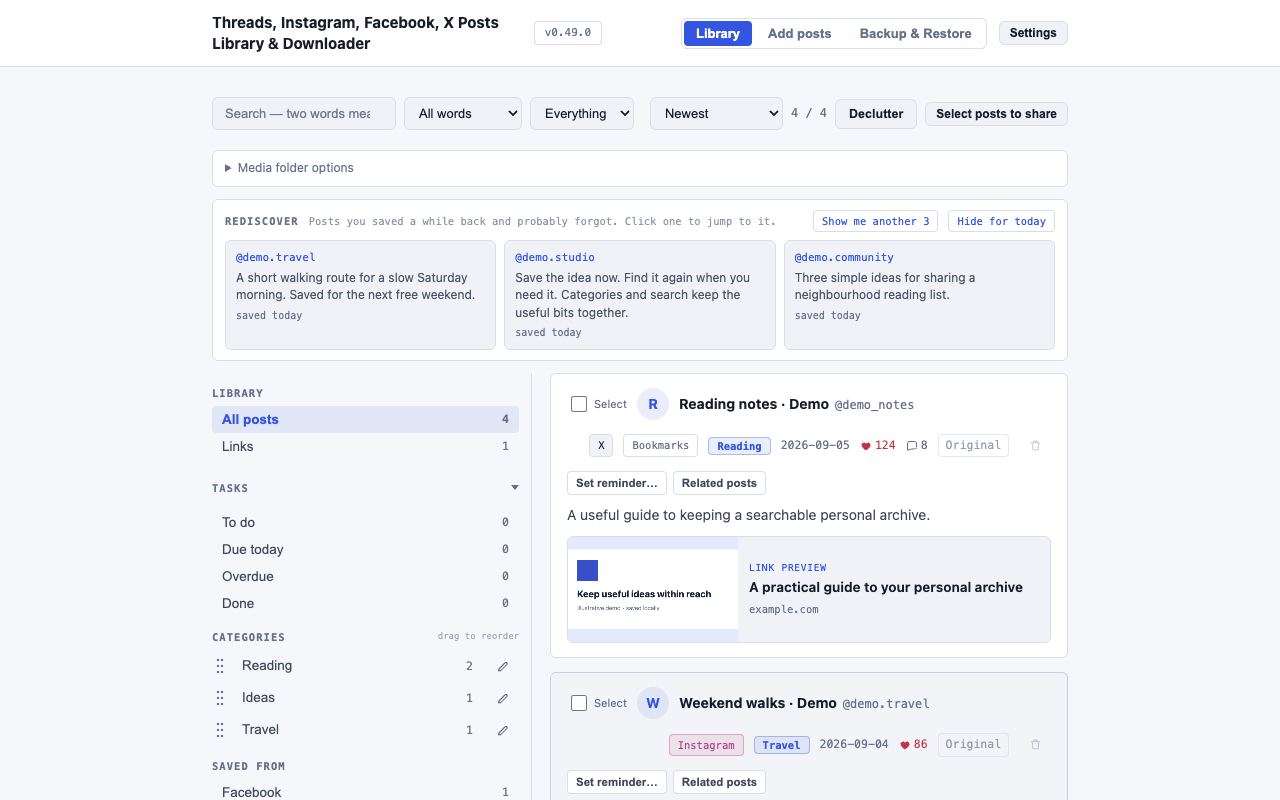
Keep useful posts within reach
Smylte - Save social media posts, library & downloader was formerly called Post Library. It is an unofficial tool, not affiliated with or endorsed by the supported services. Available features can change when a site changes; read the update notes and check the installed version.