 Google Play ↗
What to know
- Start with a compatible Android 9-or-newer phone and a computer that allows Bluetooth keyboard input.
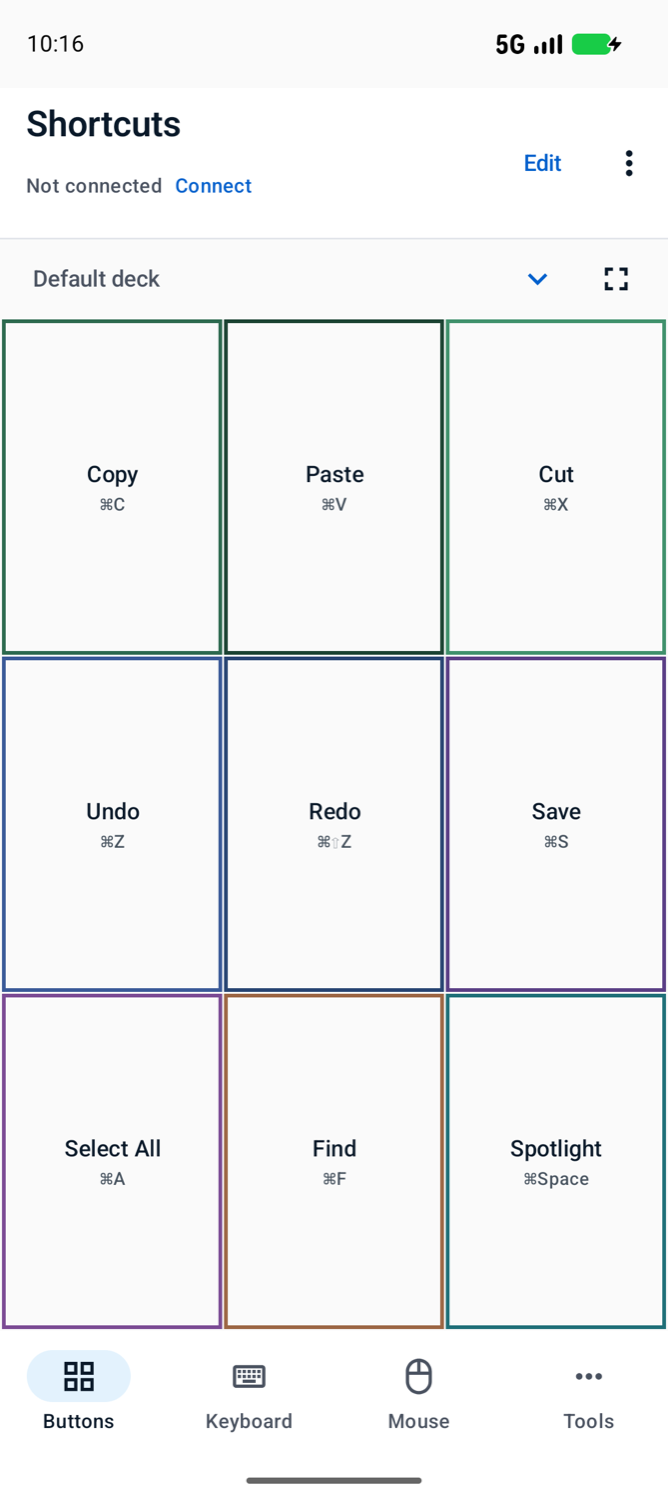
- A free page can hold up to 12 buttons. You do not need Air Mouse or a motion sensor for ordinary shortcut buttons.
- No computer companion app is required; the computer still needs to accept and interpret the keyboard input.
Before you start
Check the phone can act as a Bluetooth HID input device. Android version alone does not prove support, and workplace Bluetooth restrictions can prevent pairing.
Export your existing layout before replacing buttons. Use a spare document for the first test, and keep your normal keyboard available.
How to do it
Prove the basic connection first
Pair and connect to the intended computer. Check that Shortcut keys matches that computer. Focus a blank document and test one harmless key before building the deck.
Build a small daily-use board
Choose Buttons, Edit and an empty slot. In Tap, add a Key press and the modifiers your computer uses. Name the button for the result, choose Save, then Done. Begin with three or four actions rather than filling every slot.
Check the actual result
Select disposable text on the computer. Try Copy, Paste and Undo in that document, checking after each tap. A connected status does not confirm that the intended application received a key.
Put the phone where the buttons are usable
Use a stable stand within reach. Keep the app visible, check the connection after a break and save a working profile before changing the layout.
A first board for everyday work
| Button label | Configure and check |
|---|---|
| Copy | Use the copy shortcut for the selected computer; select disposable text first. |
| Paste | Use the matching paste shortcut in an empty field. |
| Undo | Choose the active application's undo shortcut and confirm it reverses the test edit. |
| Find | Map the application's search command, then check which search field opens. |
Decide whether this phone is a good fit
Choose a few tasks you perform often and compare the phone with your existing keyboard. Large, clearly named buttons can be easier to find than a rarely used key combination. This is a reusable button board, not a promise of faster work or a replacement for every keyboard task.
Air Mouse is a separate Pro tool with sensor requirements. If an old phone lacks the required motion support, ordinary buttons may still be useful. Test Bluetooth HID compatibility separately instead of treating a missing motion sensor as proof that the whole app will fail.
Limits to keep in mind
- Computer focus, keyboard layout and Bluetooth policy affect the result.
- This controls one currently connected host, not two computers simultaneously.
Questions and answers
How old can the Android phone be?
The app requires Android 9 or newer, plus Bluetooth HID device support. There is no reliable age-only compatibility rule; check the actual phone and computer.
Can I connect by USB or Wi-Fi instead?
The keyboard and mouse input described here uses Bluetooth. This workflow does not provide a USB or Wi-Fi keyboard mode.