 Google Play ↗
What to know
- Map the shortcuts from your editor's current keyboard preset, rather than copying an unverified default key list.
- Start with single actions in a duplicate project and keep the timeline focused.
- This sends keyboard input; it is not a frame-accurate control-surface integration or an editor plug-in.
Before you start
Connect a compatible Android 9-or-newer phone to the editing computer over Bluetooth. Check the selected host and Shortcut keys setting.
Duplicate a small project and note the active shortcut preset. An editor update, workspace or custom preset can change a command's assigned keys.
How to do it
Choose four frequent commands
Open your editor's keyboard-shortcut settings and find playback, mark-in, mark-out and a navigation action you already use. Verify each with your physical keyboard while the timeline has focus.
Add the first timeline button
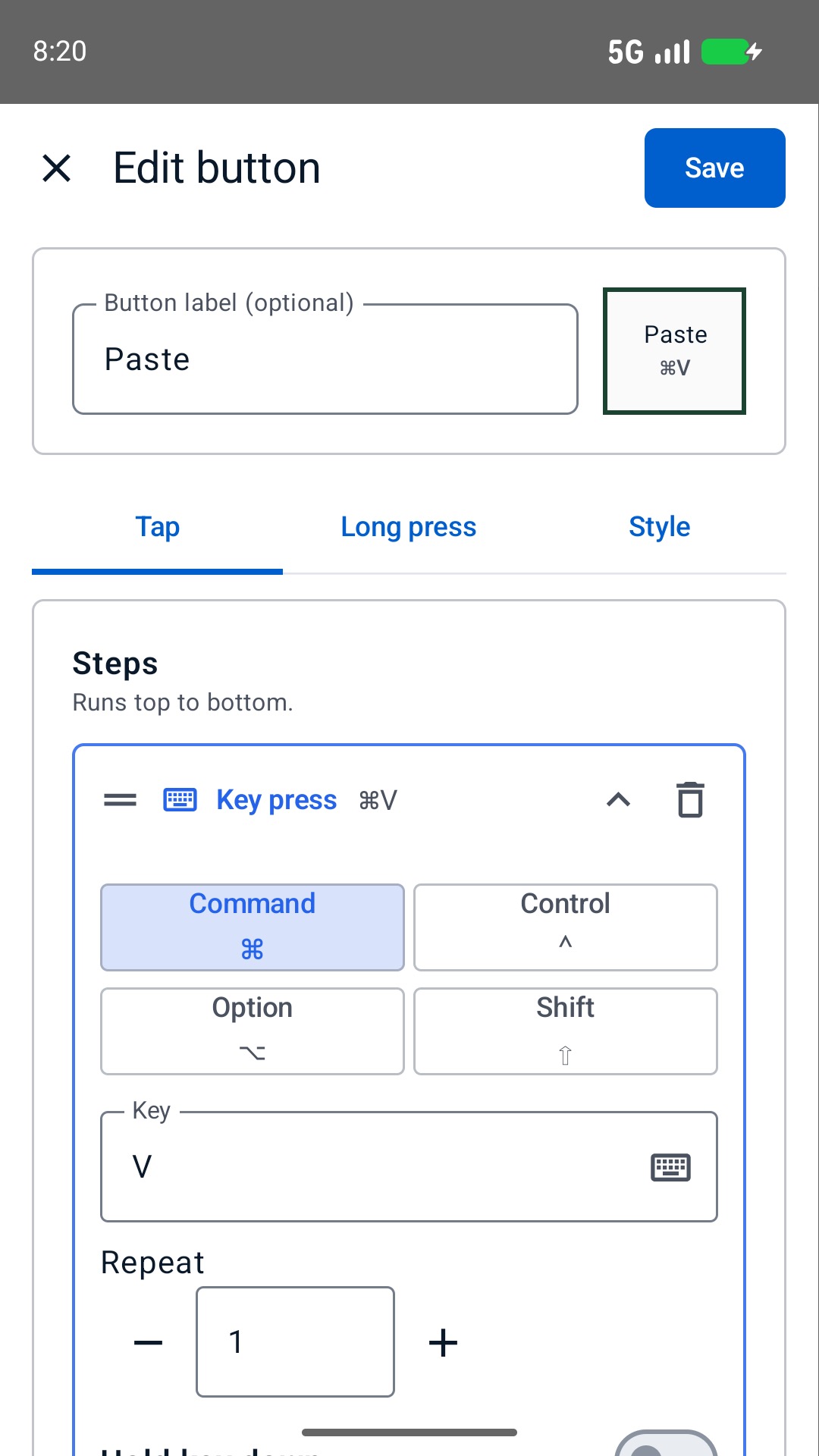
Choose Buttons, Edit and a slot on the phone. In Tap, add a Key press with the verified key and modifiers. Label the action, choose Save and then Done. Test playback before adding more buttons.
Test focus changes deliberately
In the duplicate project, try the action with the timeline selected, then notice what happens after selecting a text field or another panel. Return focus to the intended panel before using the board again.
Expand only the reliable actions
Add the remaining single-command buttons and save a profile for that editor and preset. If you later add a multi-step macro, check every intermediate result; a fixed Delay cannot detect when rendering or a dialog finishes.
A first video-editing board
| Label | Choose in your editor |
|---|---|
| Play / Pause | A playback command that behaves as you expect in the selected panel. |
| Mark in | The current preset's command for setting the start point. |
| Mark out | The command for setting the end point. |
| Previous edit | A verified navigation command for the timeline. |
| Undo | A way to reverse a harmless test edit in the duplicate project. |
Separate transport from destructive edits
Keep navigation and playback easy to find. Put delete, ripple-delete, overwrite and export actions away from those buttons, and leave them out of the first board. A shortcut can operate on the wrong clip if the selection changes.
Use a separate profile when moving between editing applications or shortcut presets. A deck that works in one editor is not automatically correct in another, even when the buttons have similar labels.
Limits to keep in mind
- Timeline focus and selected clips determine what the host command affects.
- Bluetooth delivery and the computer's response are not independently acknowledged by the phone.
Questions and answers
Can I use this with Premiere Pro or DaVinci Resolve?
You can configure keys those applications accept, subject to their current settings and computer policy. This guide does not claim an Adobe or Blackmagic integration, a supplied preset or certified compatibility.
Can a macro wait until an export finishes?
No. A Delay waits for a set time; the phone does not inspect export progress on the computer.