 Google Play ↗
What to know
- Create ordinary custom Buttons for slide navigation; this guide does not depend on a dedicated presenter screen.
- Keep the slideshow focused on the connected computer and test the exact presentation mode you will use.
- Pro volume-button controls are optional. Keep the Use volume button as page open, visible, connected and armed.
Before you start
Use a compatible Android 9-or-newer phone and a computer that accepts Bluetooth keyboard input. Pair and connect before the audience arrives.
Open a copy of your slides. Check the presentation application's own keyboard shortcuts instead of assuming that its editing and slideshow modes use identical keys.
How to do it
Choose the two navigation keys
On the computer, start the slideshow and try its documented next-slide and previous-slide keys with your physical keyboard. Depending on the application and mode, these might be arrows or Page Down and Page Up. Keep only assignments you have verified.
Make Next and Previous buttons
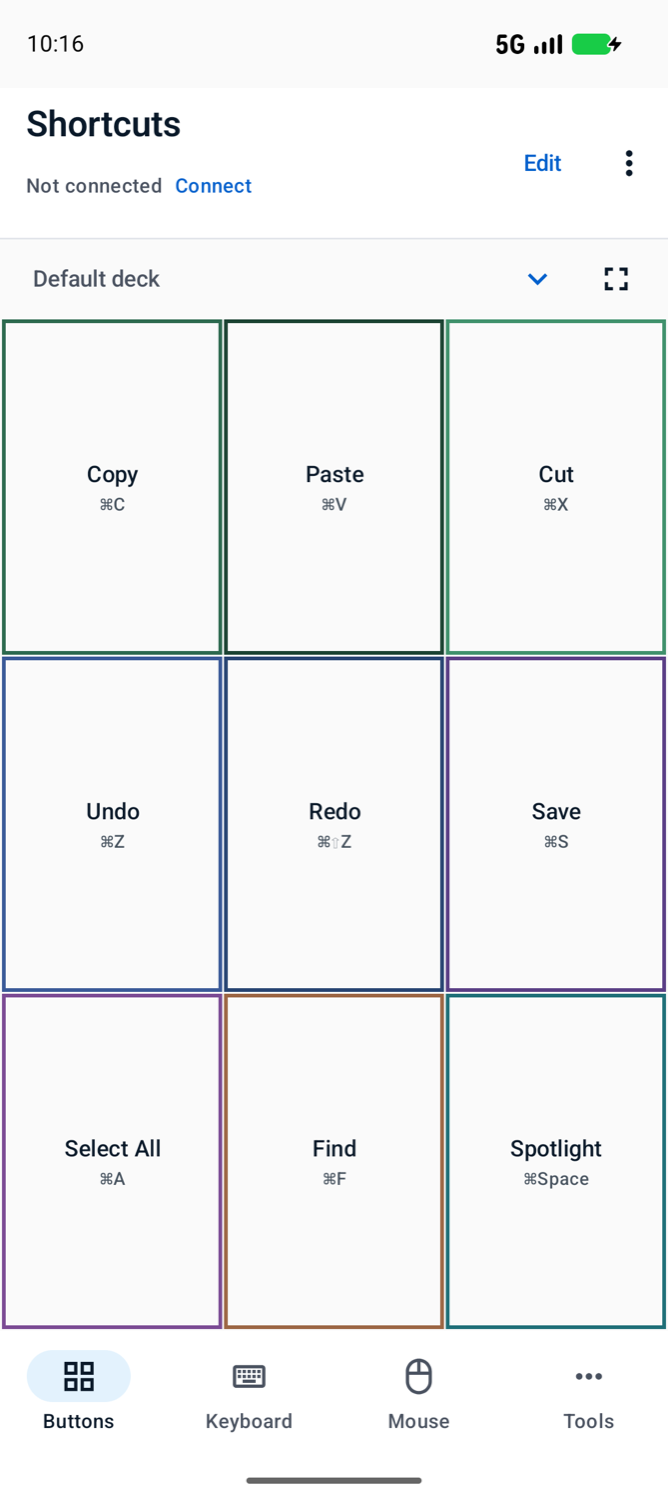
On the phone, choose Buttons, Edit and a slot. In Tap, add a Key press for the verified next-slide key, label it Next and choose Save. Make Previous the same way, then choose Done to leave Edit.
Rehearse the whole path
Focus the slideshow and tap Next once, then Previous once. Check slide animations as well as slide changes. Rehearse after switching to an external display, because focus or presentation mode can change.
Keep a fallback within reach
Save the tested board as a profile. Bring the physical keyboard or another familiar control, and confirm the Bluetooth connection again after the computer sleeps or the phone app leaves the foreground.
A presentation board with clear jobs
| Button | Use only after checking |
|---|---|
| Next | The next-slide or next-animation key in slideshow mode. |
| Previous | The previous-slide key in the same mode. |
| Start show | Your application's chosen command; test the starting slide. |
| End show | A verified command to leave the slideshow, placed away from Next. |
When volume buttons help
The Pro tool Use volume button as can map the physical volume keys to supported host actions. Choose it only after the on-screen Next and Previous buttons work, then test both volume keys during rehearsal.
These mappings are not background or lock-screen controls. Keep the Use volume button as page itself open and visible, with controls armed, Pro access and a connected host. Switching to Buttons or covering the tool with another screen stops these mappings.
Limits to keep in mind
- Bluetooth range and host policies still apply; rehearse in the room where you will present.
- The app does not inspect the slide or confirm that it advanced.
Questions and answers
Does this require PowerPoint or a specific slide app?
The workflow uses keyboard commands accepted by your presentation software. It is not a certified integration with PowerPoint, Keynote or a browser-based slide service.
Will it work with the phone locked?
Do not plan around locked-phone control. Pro volume-button mappings require the Use volume button as page itself to stay open, visible and armed, with a connected host.