 Google Play ↗
What to know
- The streaming software must expose keyboard assignments for the actions you want.
- Test scene and audio commands with a local recording or preview before going live.
- This is a configurable keyboard panel, not a native streaming integration or a live status display.
Before you start
Connect a compatible Android 9-or-newer phone to the streaming computer. Confirm the selected host and the Shortcut keys setting.
Use a test setup that cannot accidentally broadcast. Check hotkey conflicts with games, chat clients and system commands.
How to do it
Assign a harmless scene command
In your streaming software, choose a keyboard assignment for a test scene or another easy-to-observe action. Verify it with your physical keyboard. Check the application's own rules for whether that key works when another window has focus.
Create its phone button
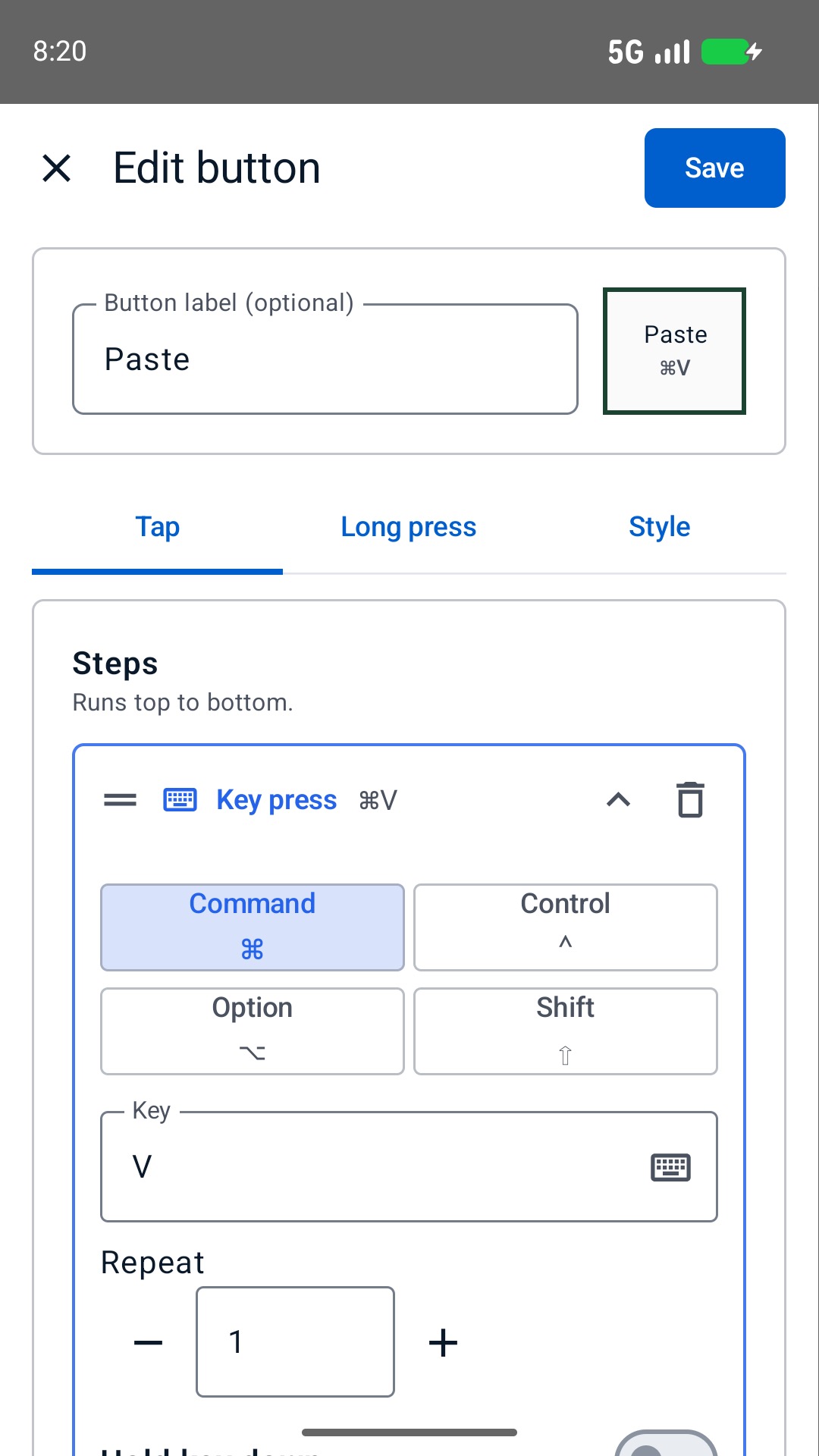
Choose Buttons, Edit and a slot on the phone. In Tap, add a Key press with the assigned modifiers and key. Give it a clear scene label, choose Save and then Done.
Rehearse focus and audio behavior
Tap the scene button in a local preview, then test again with your usual game or chat window focused. Add an audio action only after checking whether it toggles or explicitly sets a state. Watch the streaming application's own indicators.
Separate live-session actions
Save the tested board as a profile. Keep start-stream, stop-stream and other high-impact commands away from routine scene buttons, or leave them on the computer until you have a reliable rehearsal process.
A small first streaming panel
| Label | What to assign and verify |
|---|---|
| Main scene | A specific test scene's keyboard assignment. |
| Break scene | A different scene you can recognize immediately in preview. |
| Microphone action | The host software's assigned mute, unmute or toggle behavior. |
| Desktop audio action | A separate verified audio command if the software supports it. |
| Local recording | An optional recording command, tested without broadcasting. |
A label is not live feedback
A button label does not know whether a microphone is muted. Use an action label such as Toggle mic, then check the host application's audio indicators.
If the host software offers separate mute and unmute commands, consider those instead of a toggle. This is a host setting, not a phone state-reading feature.
Check shortcuts in your real focus setup
Do not assume a streaming hotkey is global. The host application controls whether it accepts shortcuts in the background, while games and system shortcuts can intercept keys. Test the exact combination of applications you use; the phone cannot override those rules.
Limits to keep in mind
- Rehearse before a live broadcast, especially actions that toggle audio or start and stop a session.
- Bluetooth connection and successful key sending do not confirm the host's final streaming state.
Questions and answers
Is this an OBS controller or Stream Deck plug-in?
It is a configurable Bluetooth keyboard panel. You may assign keys accepted by OBS or other host software, but this guide does not claim a native plug-in, supplied integration or live feedback.
Will the phone show whether my stream is live?
No. Labels and colors are your own layout, not synchronized stream, scene or audio status.