 Google Play ↗
What to know
- Use Buttons to send verified tool and view shortcuts to the focused design application.
- Keep the first board to a handful of commands and test it on a disposable image or document.
- The phone is a keyboard shortcut pad here, not a pressure-sensitive pen, color sensor or application-aware controller.
Before you start
Pair a compatible Android 9-or-newer phone and check a harmless key reaches the design application.
Open a duplicate document with no important unsaved work. Find the current tool and zoom assignments in the application's keyboard settings, including any custom preset.
How to do it
Choose actions for your free hand
Pick commands you repeat while your other hand uses the mouse or pen. Tool selection, zoom to fit and undo are candidates if your application exposes keyboard assignments.
Configure a named tool button
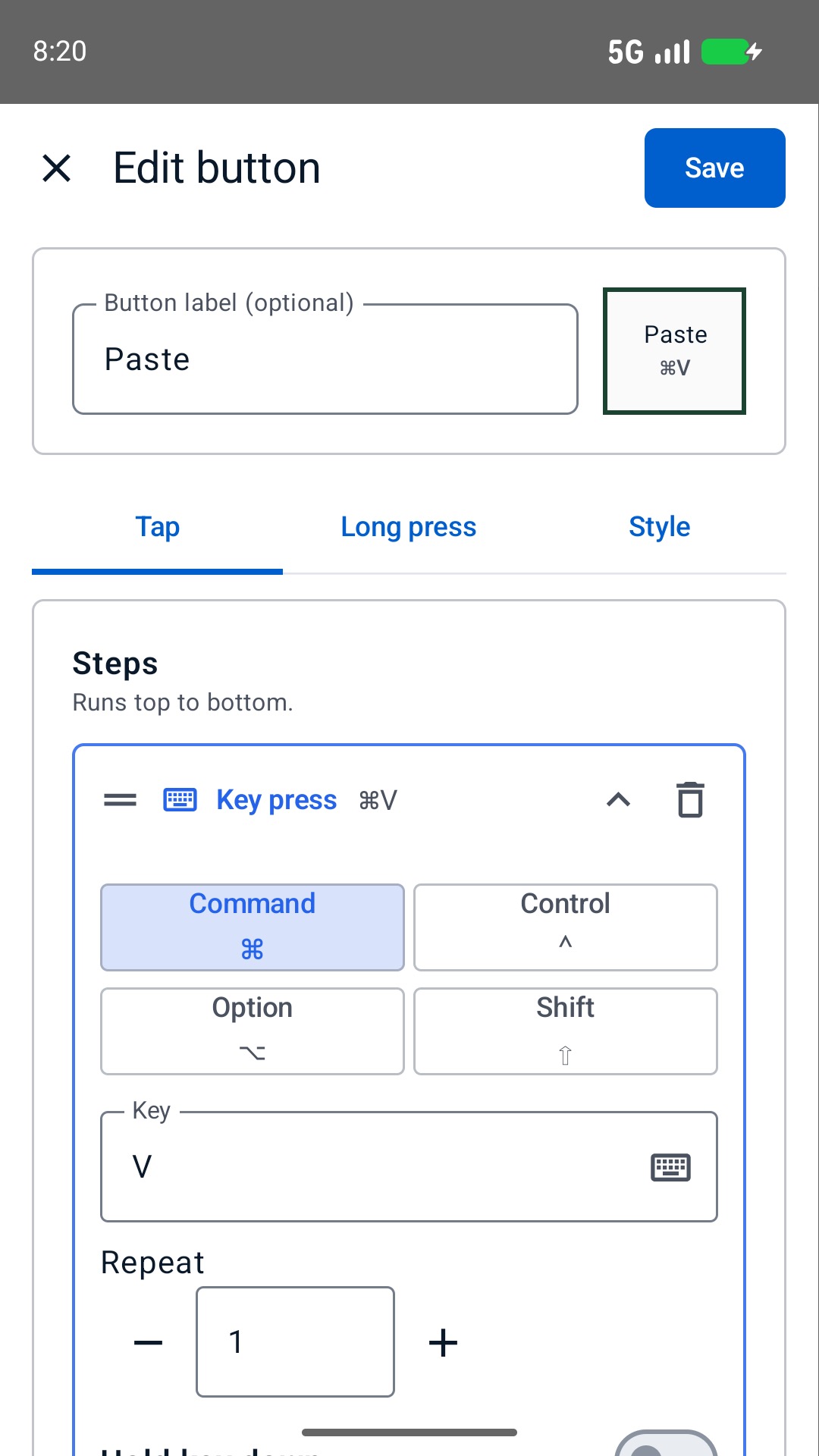
On the phone, open Buttons, Edit and an empty slot. In Tap, add a Key press with the chosen key and modifiers, label the result and choose Save. Choose Done before using the button.
Check canvas and text-editing behavior
Select the document canvas, tap the button once and look for the intended tool or view change. Then leave any text-editing field and test again. A tool letter sent into a text box can type a character instead of changing tools.
Keep each application recognizable
Save the working layout as a profile named for the application or task. Review every assignment when you switch software or presets, and keep your physical keyboard for precision adjustments and less common commands.
A starter board beside a mouse or pen
| Label | Assignment to verify |
|---|---|
| Undo | The active application's undo command. |
| Brush or main tool | A tool shortcut you use often; check whether repeat presses cycle tools. |
| Move or select | A verified selection or navigation tool command. |
| Zoom to fit | Fit the document in the current window. |
| Zoom in / out | The application's chosen zoom keys, tested on the canvas. |
Make labels describe outcomes
Name a button for the result you want, such as Fit canvas, instead of a letter you may forget. Keep related view commands together and give infrequent destructive commands a different position.
Button colors and labels are reminders you configure. They do not show which tool, layer or document is active on the computer. Look at the application before applying a command to an important selection.
Limits to keep in mind
- Tool behavior can depend on the active canvas, selection and shortcut preset.
- The app does not read back layer names, selected tools or document state.
Questions and answers
Are there ready-made design packs?
The app includes Photoshop and Figma preset packs. This manual workflow lets you verify your own assignments first. Review a pack before loading it: loading a pack can replace the current deck.
Can the phone replace my drawing tablet?
Not through this shortcut workflow. It sends configured keyboard commands and does not provide pen pressure, tilt or a drawing-tablet driver.